
Create a Pulse survey
Want to know how the new music, the extra class or last week's clean-up is landing? A Pulse survey asks one question that members answer in a single tap. You'll build one with Fortios Fitness in under a minute and learn how to keep a steady pulse on what matters, week after week.
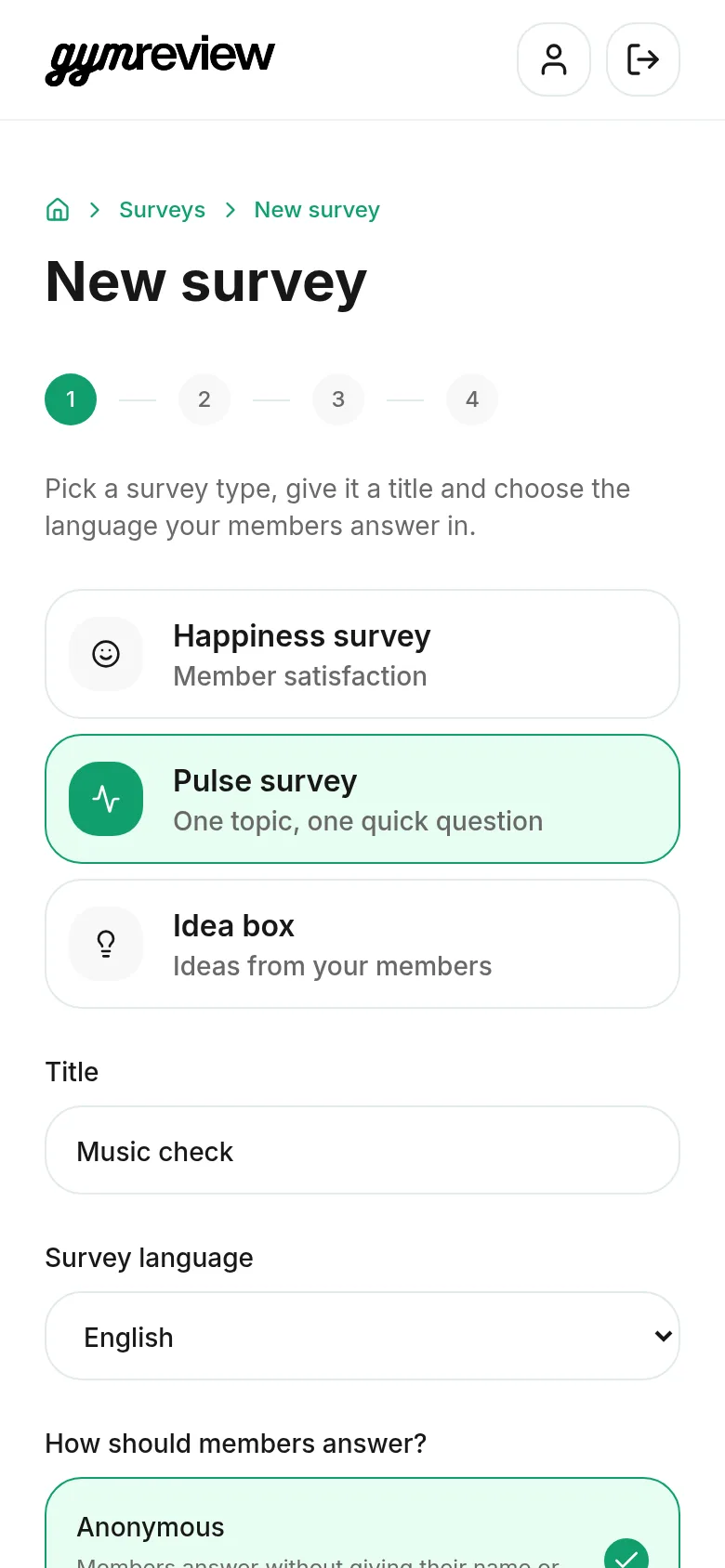
Title, language and names
On your home screen, tap Pulse survey (or choose it under New survey).
- Title — for your own overview, for example "Music check".
- Survey language — the language your members answer in.
- How should members answer? — anonymous, or with name and email first or last. Name and email are always optional for members.
There's no welcome text to write: the start screen writes its own short sentence based on your theme.
Choose a theme
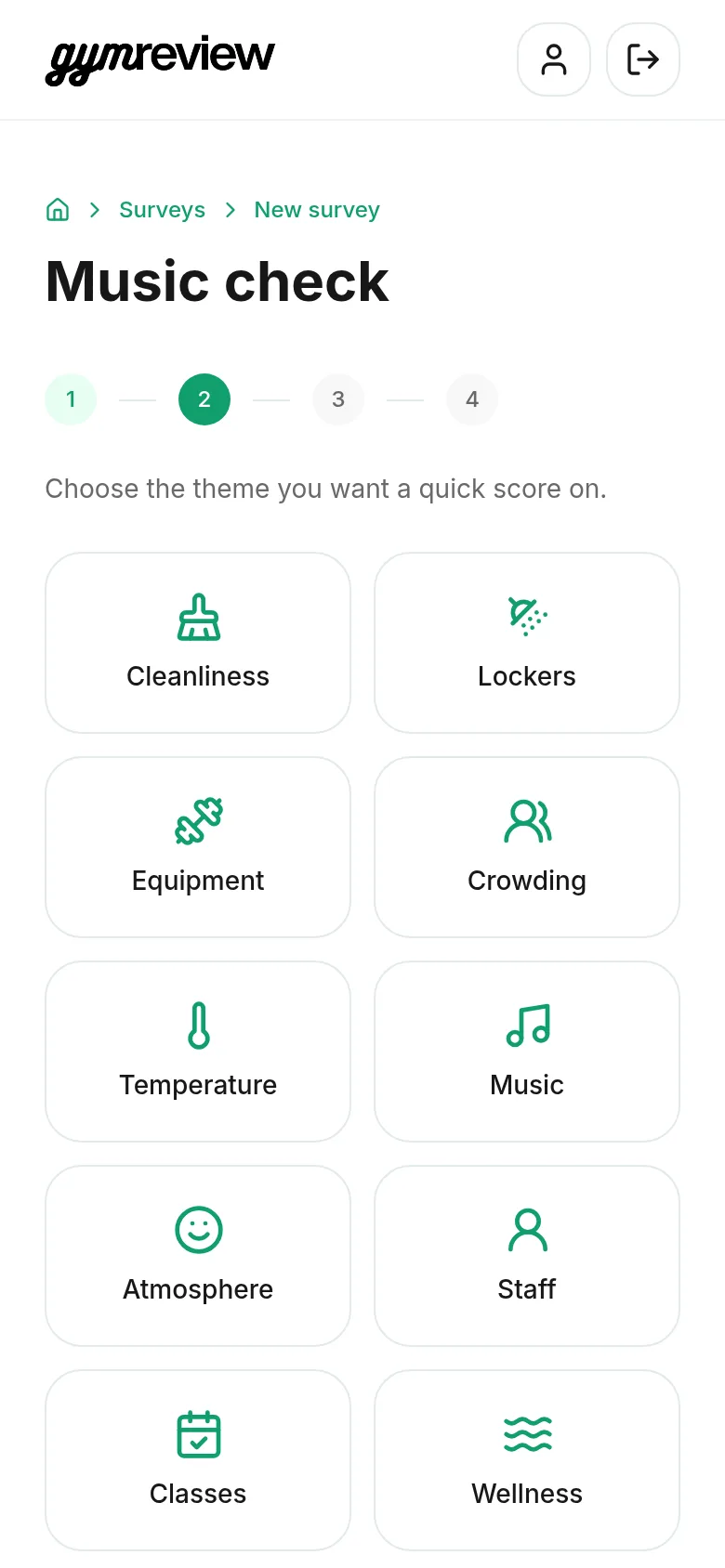
Tap the theme you want a quick score on: cleanliness, lockers, equipment, crowding, temperature, music, atmosphere, staff, classes, wellness, bar, opening hours, parking, app or motivation.
Have something else in mind? Choose Own question at the end of the list.
Question and answer type
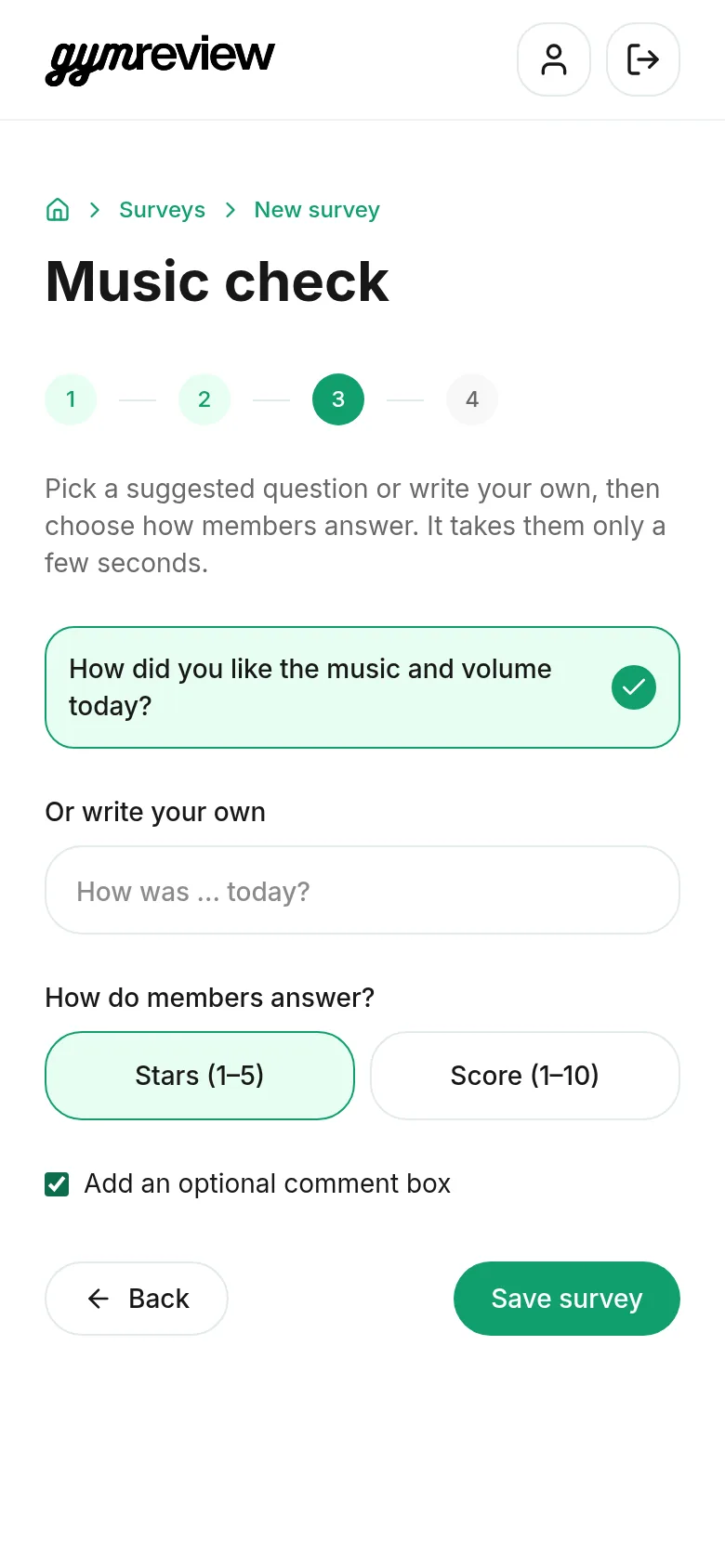
- Tap the suggested question for your theme, or type your own under Or write your own.
- Choose how members answer: Stars (1–5) or a Score (1–10). Stars are the quickest.
- Tick Add an optional comment box if members may add a few words.
Tap Save survey. It's saved as a draft until you publish it.
Publish and share
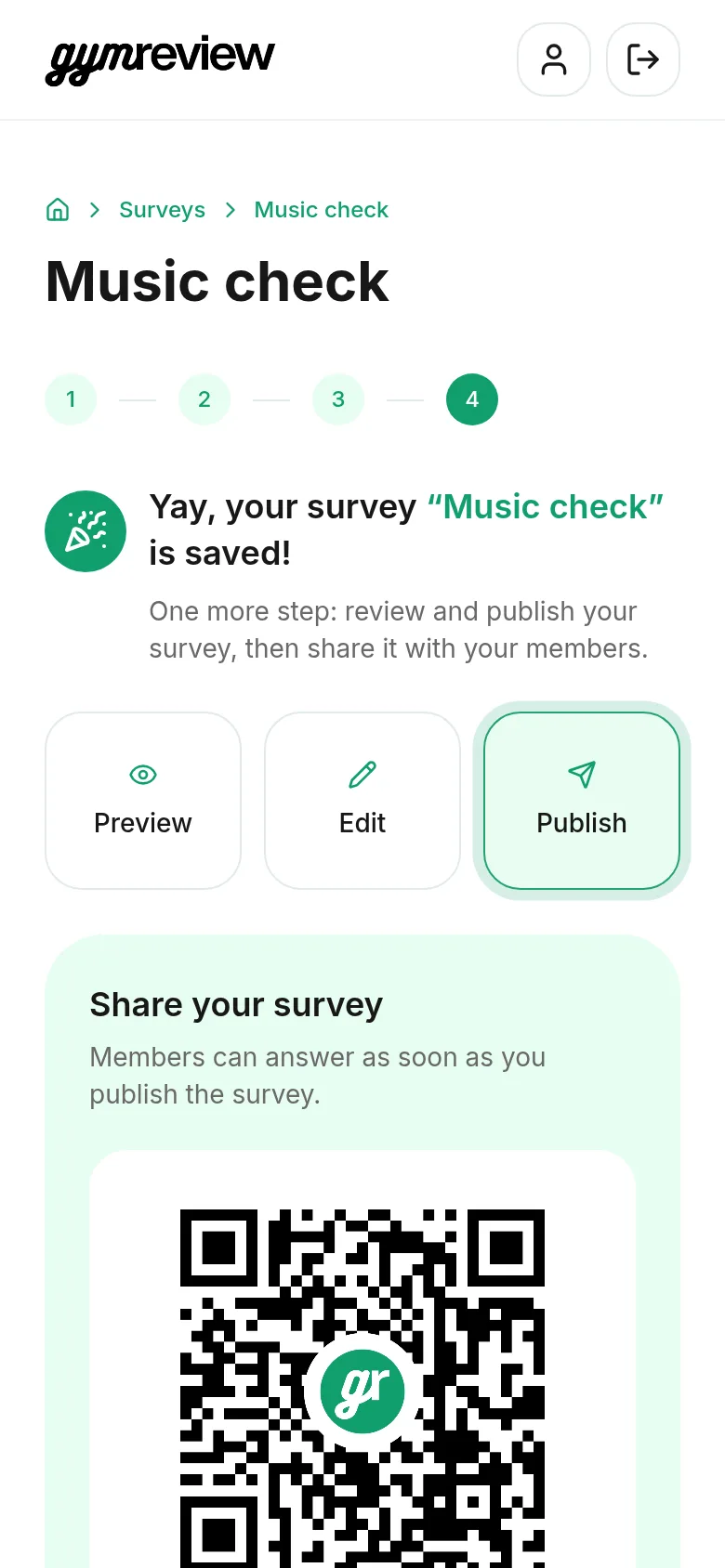
On the survey page, tap Preview to try it yourself, then Publish.
Share it with the QR code, the link or the printable A4 poster. A QR code near the exit works best: members answer on their way out.
What members see
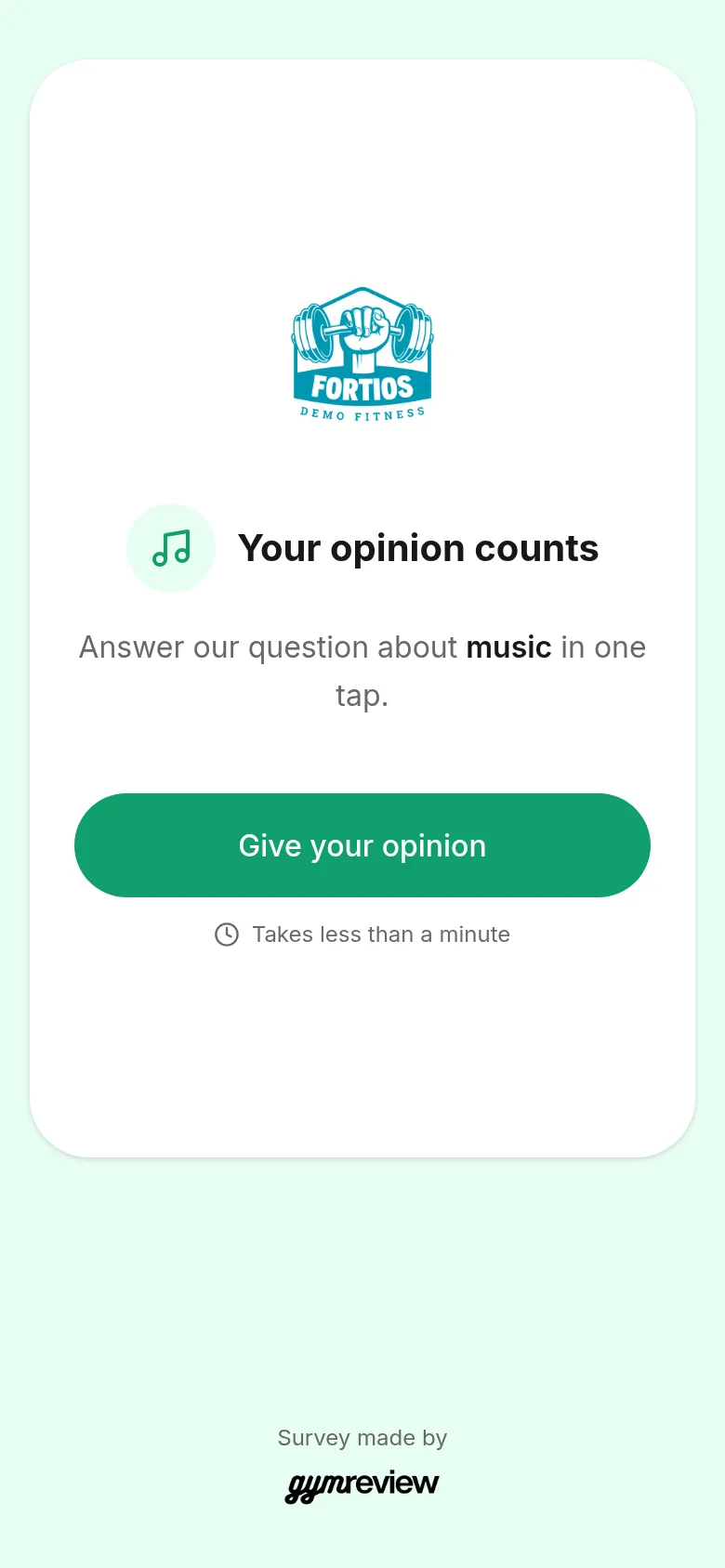
Members see your logo, the theme icon and Your opinion counts, with one sentence that names your theme — for example "Answer our question about music in one tap."
With your own question, the sentence becomes "Answer our quick question in just one tap."
Below the Give your opinion button, a clock shows it takes less than a minute.
One tap, done
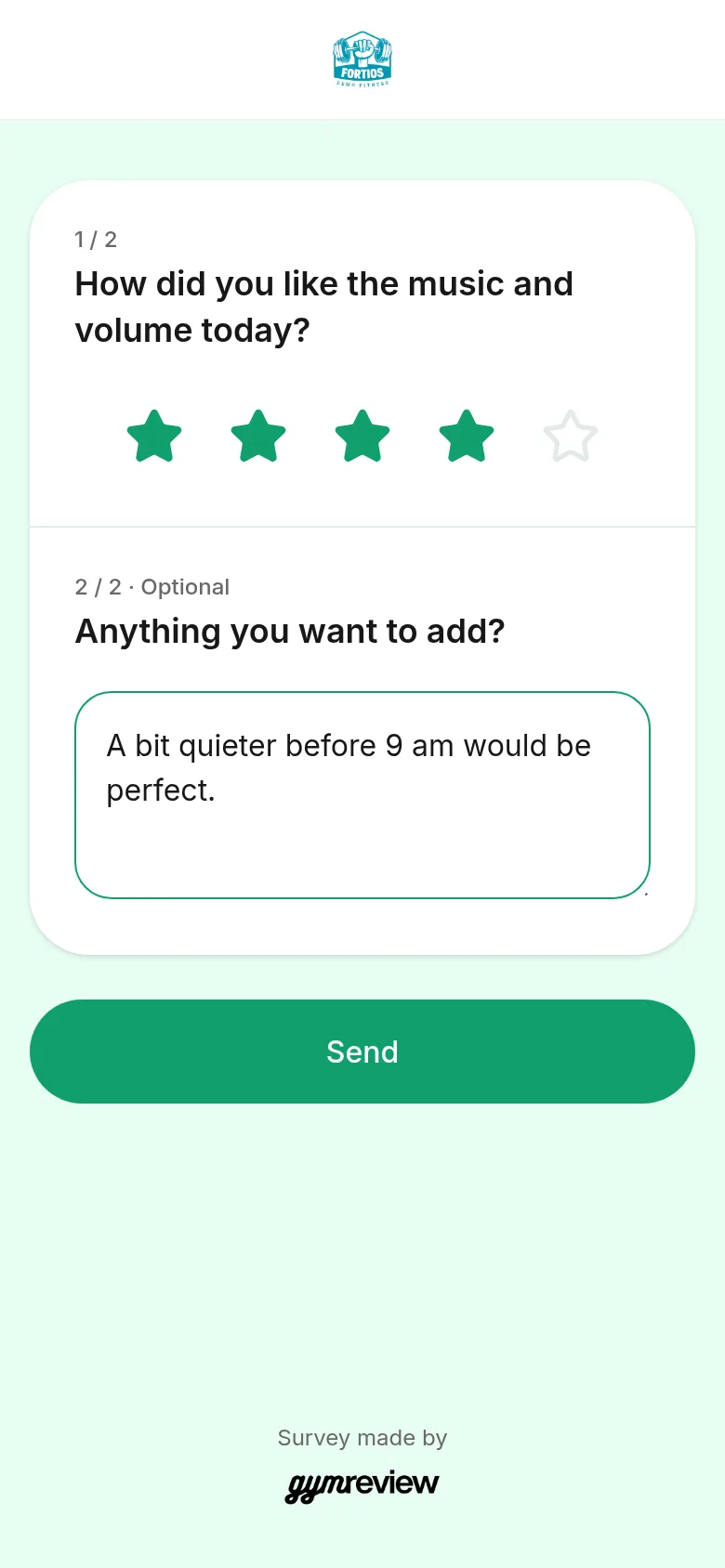
The member taps the stars or a score and, if you added it, writes a short comment. Then they tap Send and see the thank-you page.
Tip: Pulse surveys never show the Google review invitation — that's only for Happiness surveys.
Follow the results
Open the survey and tap Results to see the average score, the spread of answers and every comment, coloured by tone.
Run a new Pulse on the same theme after making a change, and compare the scores to see whether it worked.
Tip: Rotate themes: one Pulse a week keeps answers fresh without tiring your members.