
Settings and your logo
Two minutes in Settings make every survey feel like your own. You'll set the name members see, the language your surveys start in, the logo on every screen and poster, and the Google link that turns happy members into reviews. Do it once — every new survey picks it up automatically.
Your business
Tap the person icon at the top right to open Settings.
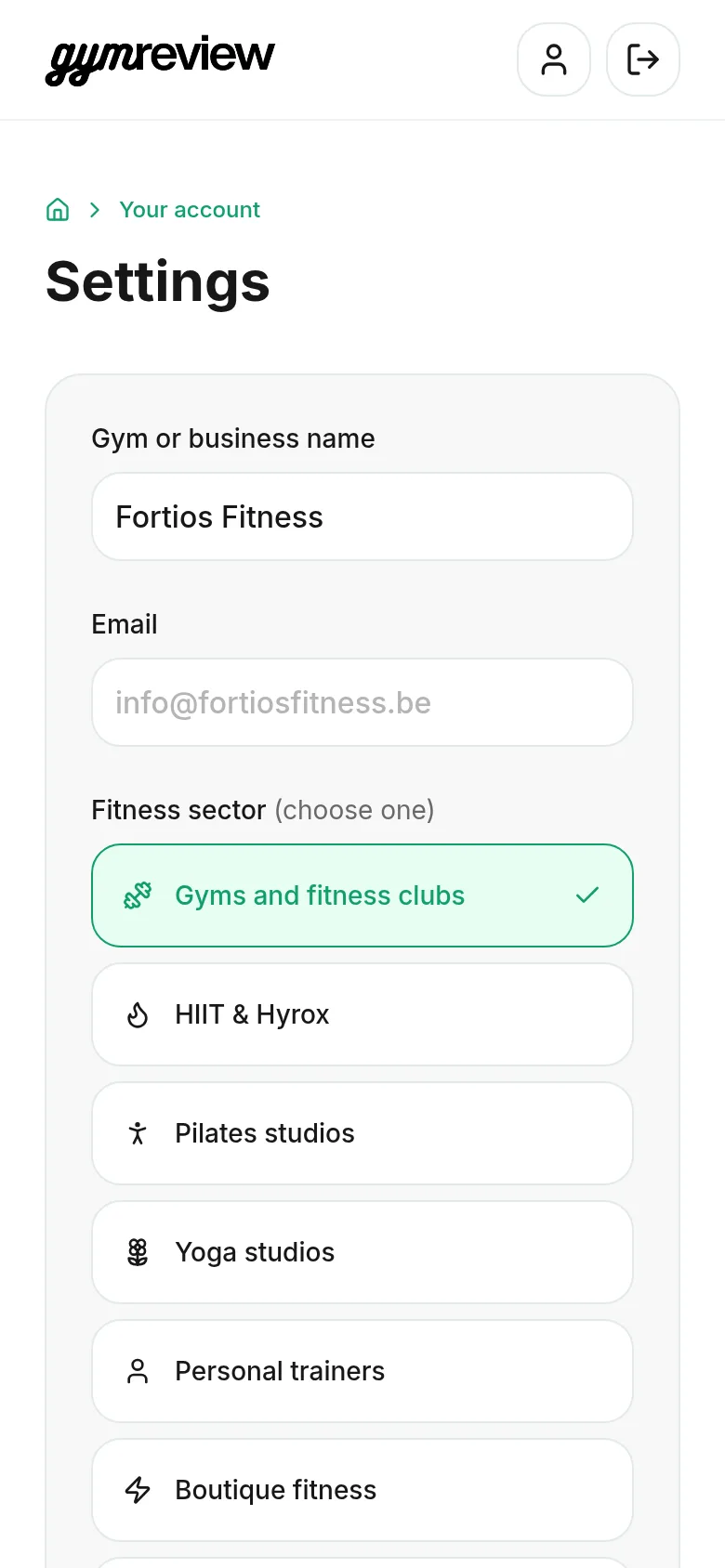
- Gym or business name — shown to members, for example on the thank-you page: "On behalf of the whole Fortios Fitness team…".
- Email — the address you sign in with. It's shown for reference and can't be changed here.
- Sector — pick the one that fits you best: gym, HIIT, Pilates, yoga, personal training, boutique, spinning or other sports.
Country and survey language
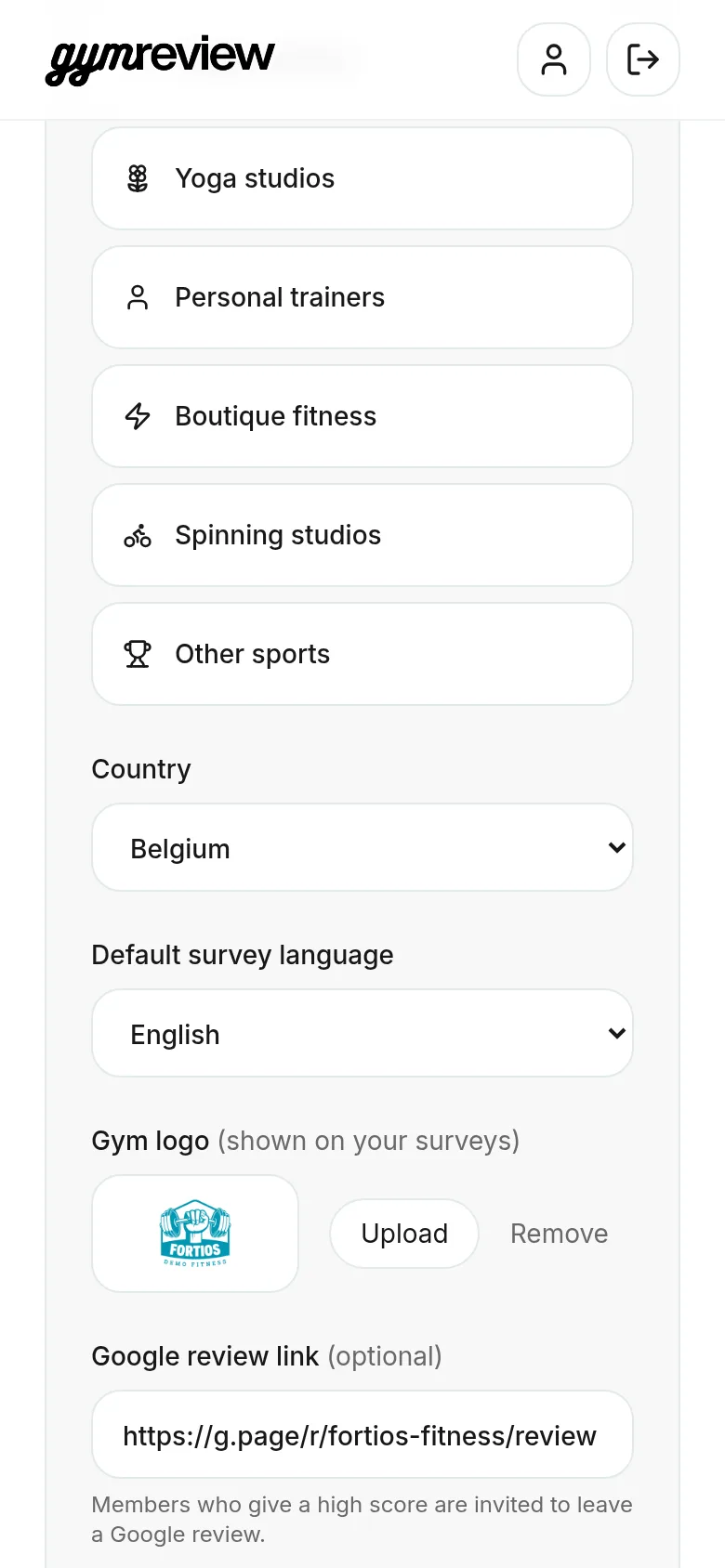
Choose your country and your default survey language: English, Dutch, French, German or Spanish.
Every new survey starts in this language, including its suggested questions and welcome text. You can still change the language per survey, for example to send a French version to part of your members.
Your logo
Under Gym logo, tap Upload and choose an image (under 5 MB). It appears at the top of every survey, in the centre of your QR code and on the printable poster.
Tap Remove to go back to the GymReview logo.
Tip: A logo on a transparent or white background looks best on both the survey and the poster.
Google review link
Paste the link to your Google review page, starting with https://. You find it in your Google Business Profile under Ask for reviews or Get more reviews.
The link is used by Happiness surveys with Google reviews turned on: members whose satisfaction reaches your threshold get a button to write a review.
No link yet? No problem — it's optional, and your surveys work without it.
Save your changes
Tap Save at the bottom. The button shows Saved when everything is stored.
Your new name and logo appear right away on all your surveys, including the ones that are already live.