Create a Happiness survey
A Happiness survey is your complete check-up: it shows how satisfied members are, topic by topic, so you know exactly what to keep and what to improve. In seven short steps you'll build one together with Fortios Fitness — from choosing topics to hanging the QR code at the front desk. Most owners are done in under five minutes.
Start a new survey
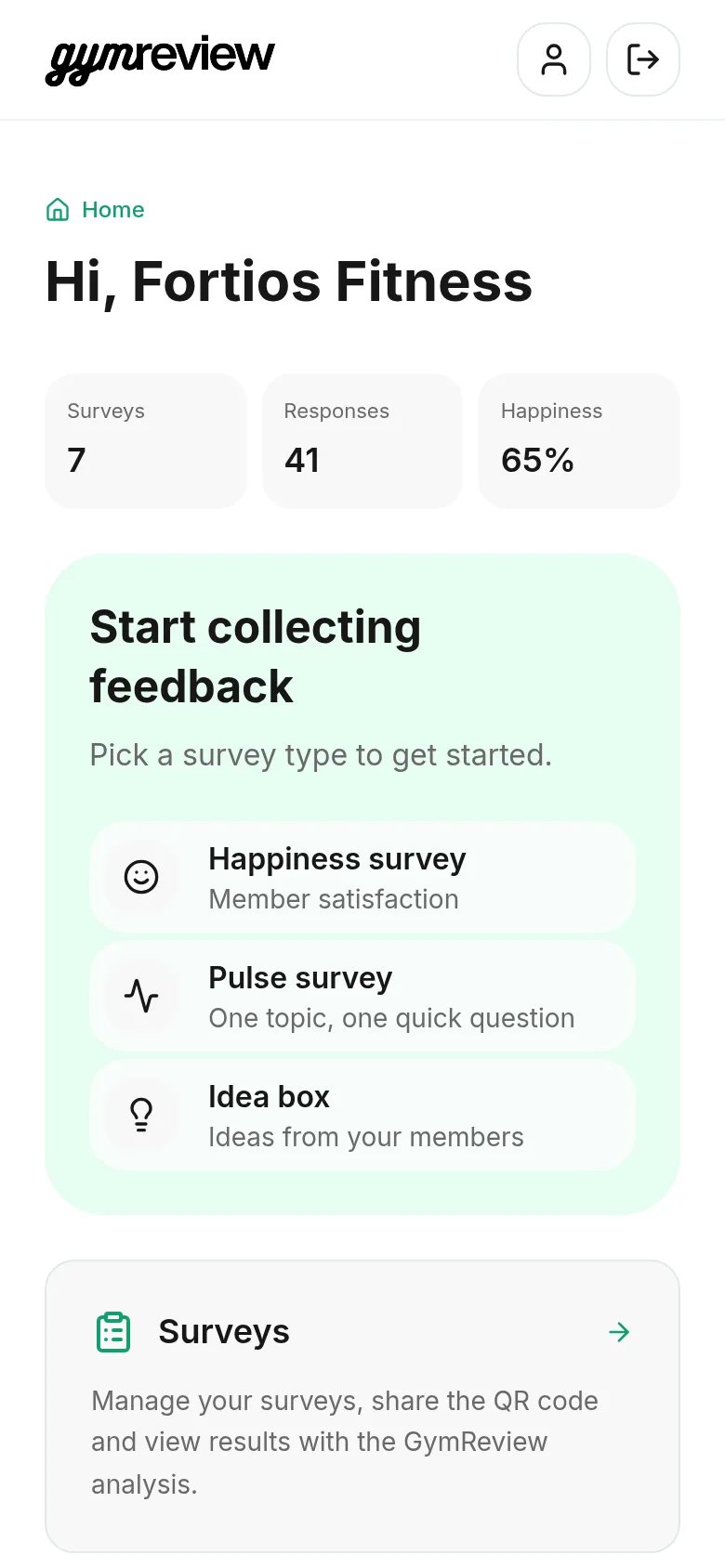
After signing in you land on your home screen. Under Start collecting feedback, tap Happiness survey.
The tiles at the top show your totals across all live surveys: number of surveys, responses and your overall happiness score.
Type, title and language
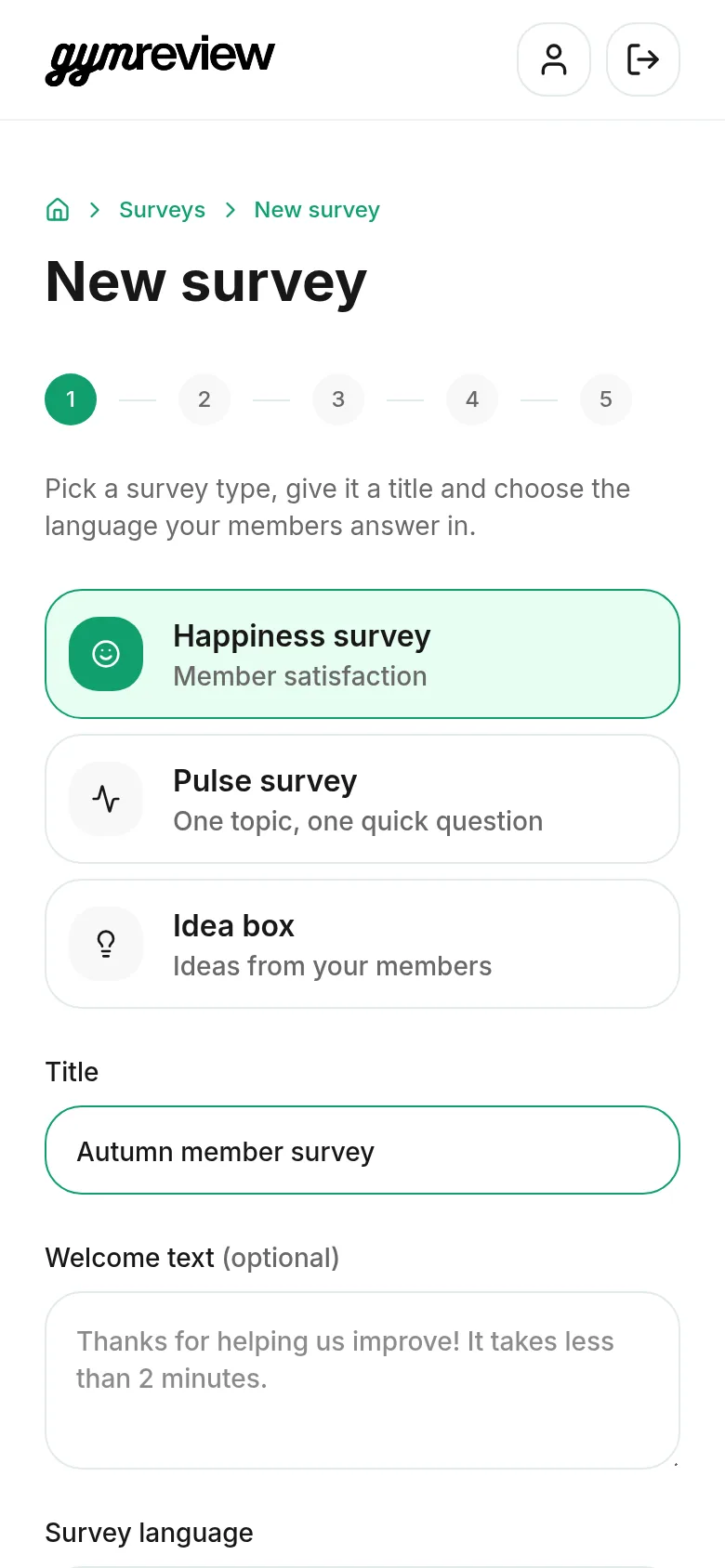
- Type — Happiness survey is selected. The type can't be changed later.
- Title — write your own, for example "Autumn member survey". Members see it at the top.
- Welcome text — optional. Leave it empty and members see the suggested text shown in grey.
- Survey language — the language your members answer in. It starts from your settings; change it per survey.
Names and Google reviews
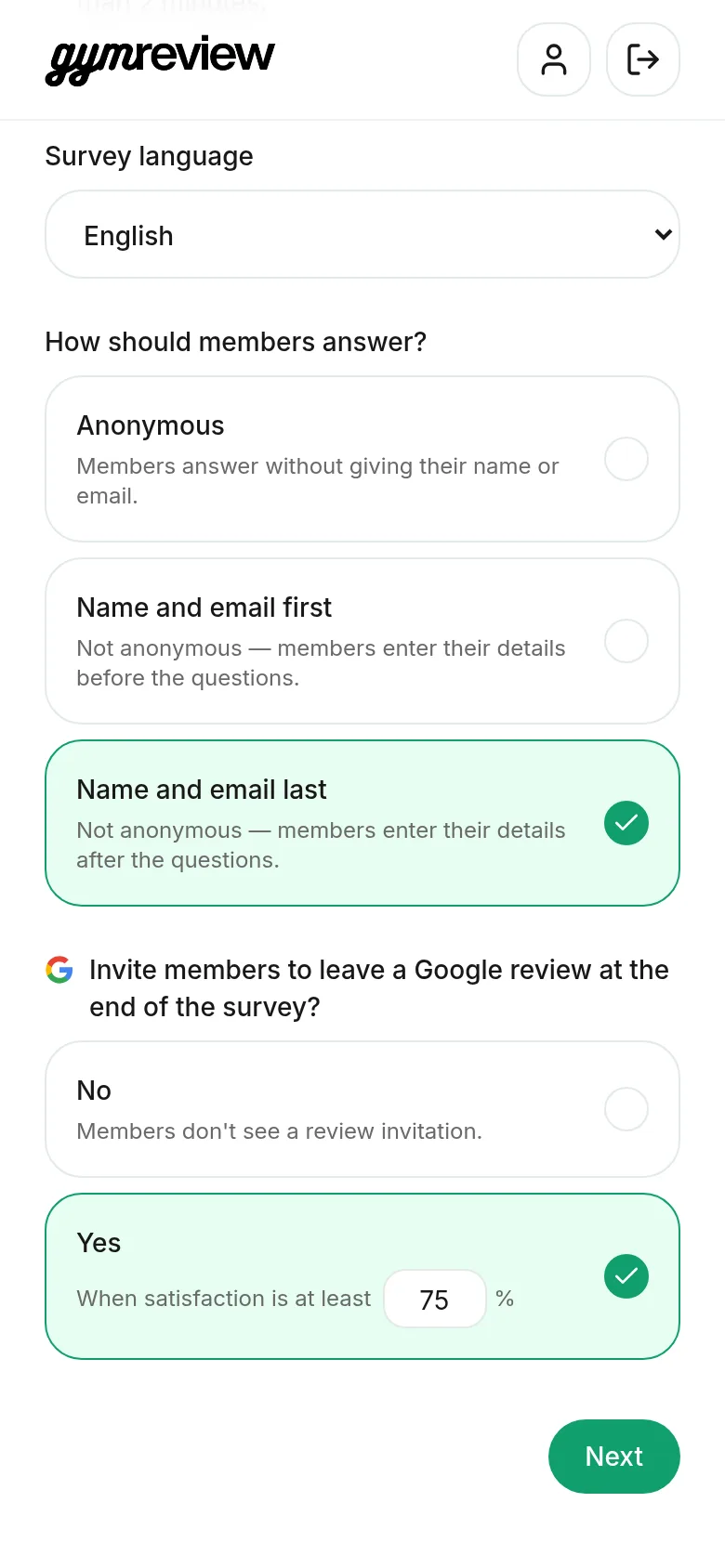
Choose how members answer:
- Anonymous — no name or email is asked.
- Name and email first — asked before the questions.
- Name and email last — asked at the end. Answers are saved even if the member leaves at this step.
Name and email are always optional for members.
Then decide whether happy members get an invitation to leave a Google review. With Yes, the invitation only appears when the member's satisfaction reaches your threshold (75% is suggested).
Tip: Add your Google review link in Settings first, so the button knows where to go.
Choose topics
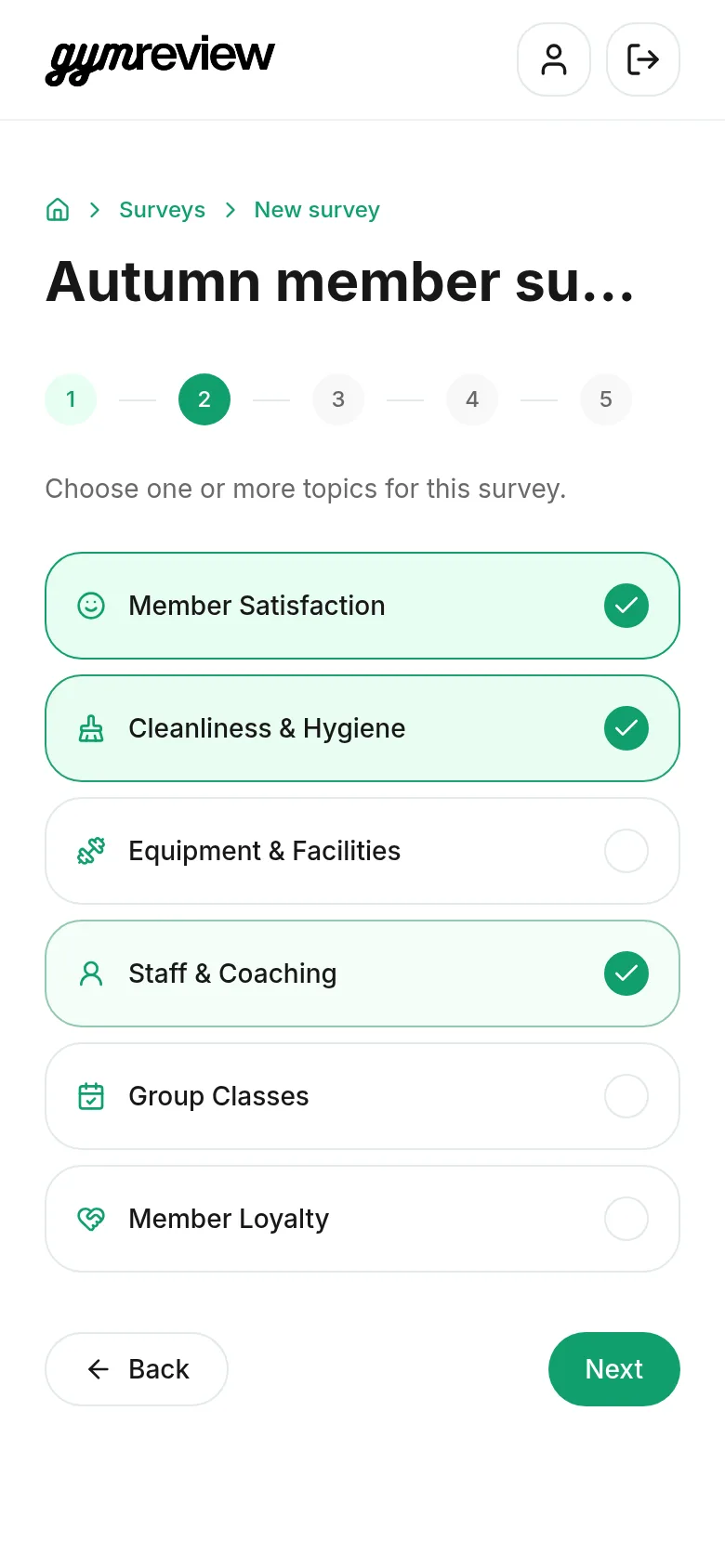
Tap the topics you want to ask about. Fortios Fitness picked member satisfaction, cleanliness and staff & coaching.
Each topic gets its own score in the results, and its own page for members.
Tip: Three to five topics keep the survey short: aim for under two minutes.
Pick questions
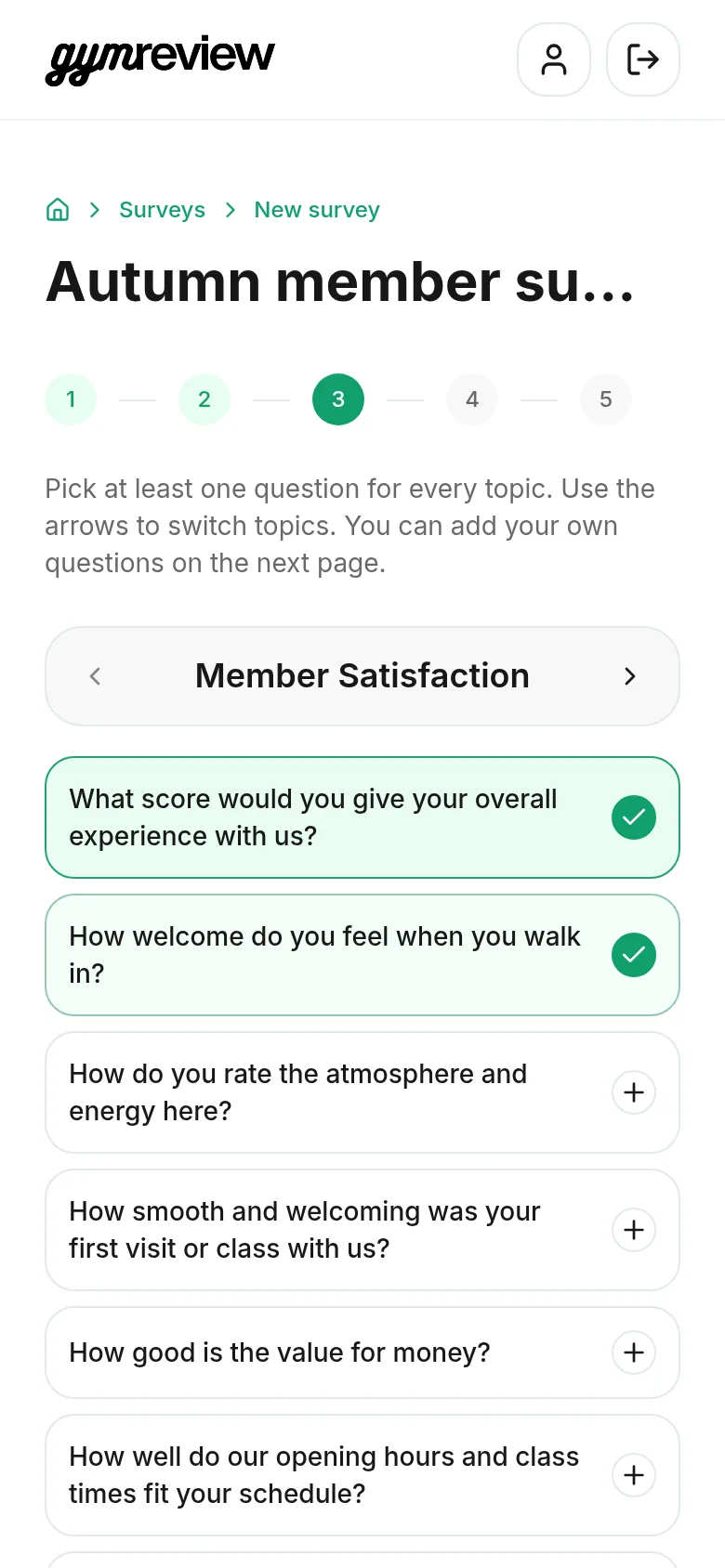
For each topic, tap the suggested questions you want (tap again to remove). Use the arrows next to the topic name to switch topics.
Every topic needs at least one question before you can continue.
Check and save
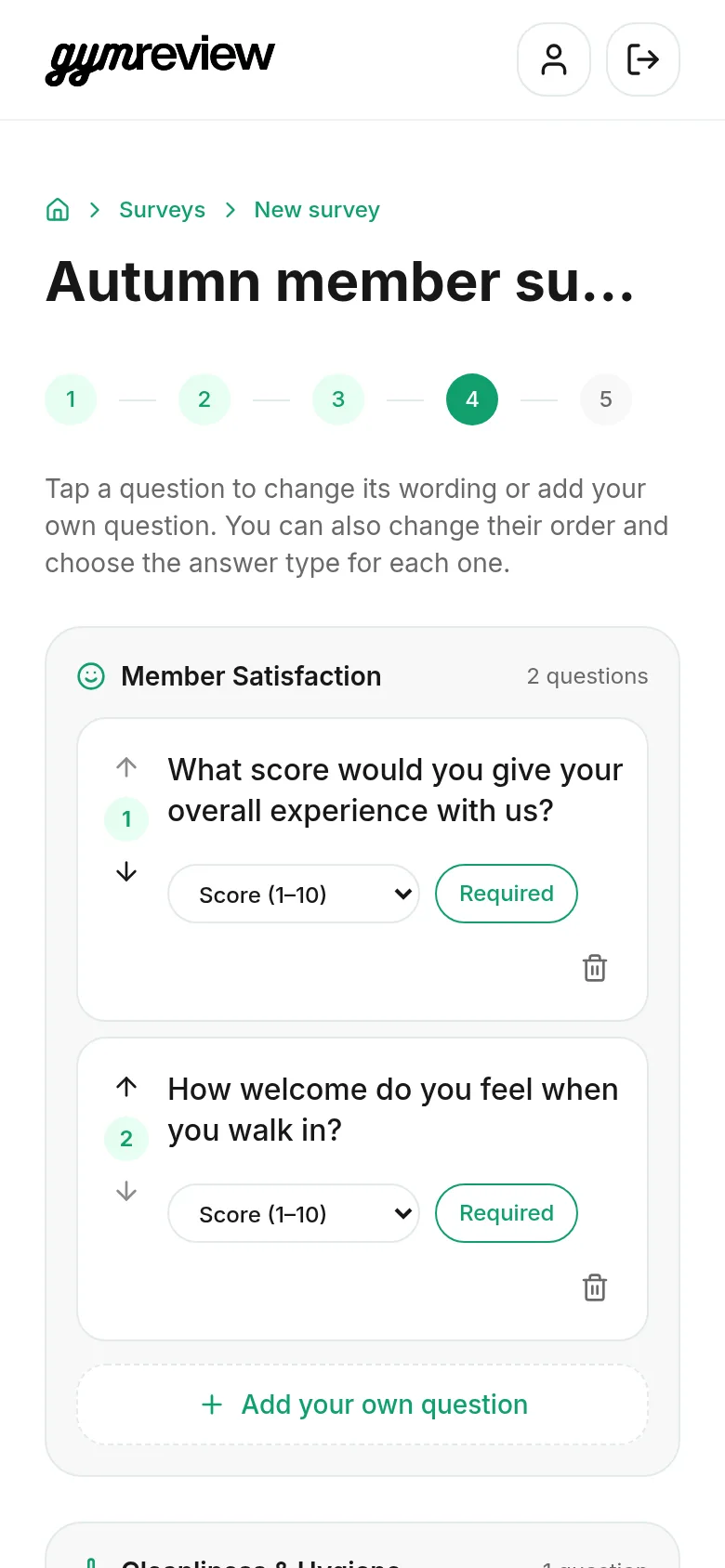
- Tap a question to change its wording.
- Use the arrows to change the order within a topic.
- Choose the answer type: stars, a score from 1–10, multiple choice or open text.
- Mark questions as required or optional, or Add your own question.
Tap Save survey. It's saved as a draft: members can't see it yet.
Publish and share
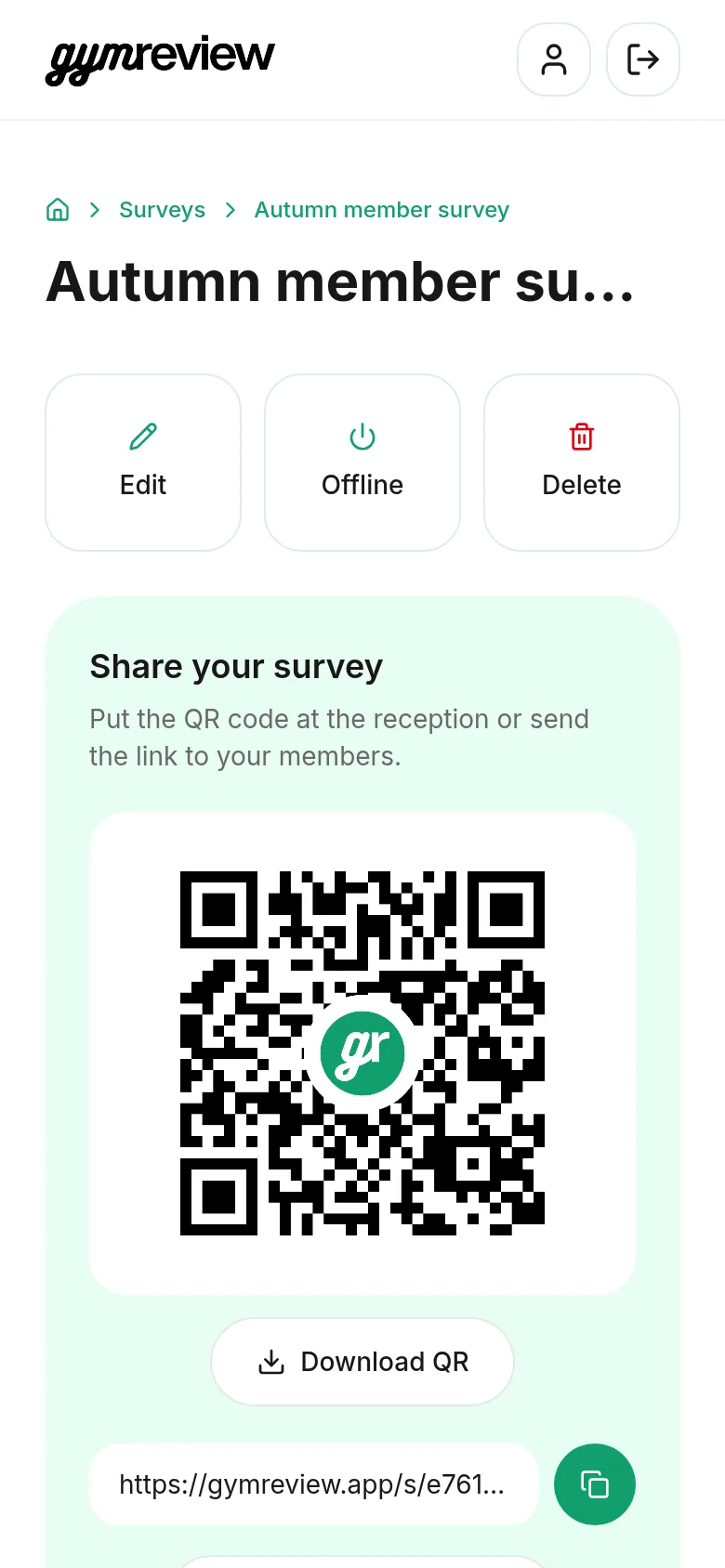
After saving you land on the survey page. Here you can Preview the survey, Edit it, and Publish it.
- Download QR — for the front desk, changing rooms or screens.
- Copy the link — for email, newsletter or your app.
- Download poster — a ready-to-print A4 poster with your logo and the QR code.
Tip: A Happiness survey can stay online all year, or serve a specific moment — for example a check-in with new members one month after they join. You can run as many surveys at the same time as you like.
Tip: To edit a live survey, take it offline first. Existing answers are kept.